Taking over an existing WordPress infrastructure can feel like stepping into a well-loved but mysterious old house. You know it works, but the “why” and “how” of its construction are often hidden behind years of accumulated decisions, quick fixes, and perhaps a few forgotten secrets.
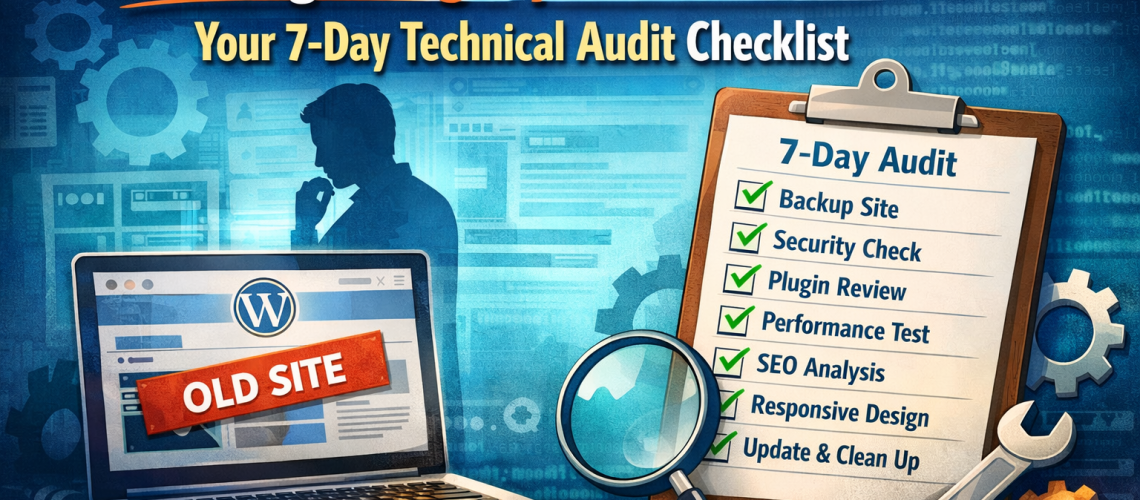
Fear not, intrepid developer! Instead of fumbling in the dark, equip yourself with a systematic approach. Here’s a 7-day technical audit checklist designed to help you quickly understand, secure, and optimize any legacy WordPress site, ensuring you uncover the “why” behind the “how.”
Day 1: Fortify the Gates – Access & Security
Your first priority is to secure the perimeter and ensure you have full, uncompromised control.
- Audit SSH Keys: Review all authorized SSH keys. Remove any associated with former team members or unknown origins.
- Change Database Passwords: Generate strong, unique passwords for the WordPress database user.
- Verify Firewall (UFW) Rules: Review existing firewall rules. Are unnecessary ports open? Is essential traffic allowed? Tighten where possible.
- Scan for Malware: Use tools like
maldet(for server-level scans) or a plugin like Wordfence (once admin access is stable) to check for any existing infections or vulnerabilities.
Day 2: Map the Blueprint – Infrastructure Deep Dive
Understand the foundational layers of your new environment.
- Document OS Version: Is the operating system (e.g., Ubuntu, CentOS) still supported? Are there plans for End-of-Life (EOL) that could impact stability or security?
- PHP Version Check: Is the site running on a supported PHP version? Older versions pose security risks and performance bottlenecks.
- Nginx Configuration Review: Examine the Nginx configuration files (
/etc/nginx/sites-available/your-site.conf). Look for custom rules, caching directives, and any unusual setups. - “Cowboy Coding” Hunt: Scrutinize core WordPress files (
wp-admin,wp-includes) and default theme files for direct, unversioned edits. These are a maintenance nightmare.
Day 3: The Safety Net – Backup Integrity
A site without reliable backups is a ticking time bomb.
- Verify Automated Backups: Confirm that automated backups are actually running. Check cron jobs, logs, or backup plugin settings.
- Off-site Storage: Are backups stored off-site (e.g., S3, Google Drive, a different server) to protect against catastrophic server failure?
- Perform a Test Restore: This is crucial. Take a recent backup and try restoring it to a separate staging environment. This validates that the backups are complete and usable.
Day 4: Optimize the Engine – Performance Analysis
A slow site is a frustrating site. Pinpoint performance bottlenecks.
- Run Lighthouse/GTMetrix: Get a baseline performance score and identify key areas for improvement (render-blocking resources, image optimization, etc.).
- Check
wp_optionsfor Autoloaded Data: A massivewp_optionstable, especially with a lot of autoloaded data, can significantly slow down page loads. QuerySELECT option_name, option_value, LENGTH(option_value) AS value_length FROM wp_options WHERE autoload='yes' ORDER BY value_length DESC LIMIT 20;to find culprits. - Analyze Slow Queries: If you have access to database logs or tools like Query Monitor, identify and optimize any database queries causing performance issues.
Day 5: Declutter the Workspace – Plugin & Theme Audit
WordPress sites often accumulate digital cruft over time.
- Identify Abandoned Plugins: Look for plugins that haven’t been updated in years, are no longer supported, or have low ratings. These are security risks.
- License Expirations: Check if any premium plugin or theme licenses are expired. This could prevent updates or access to support.
- Unnecessary Bloat: Remove inactive themes and plugins. Even inactive ones can sometimes pose a security risk or use up disk space.
Day 6: Listen to the Whispers – Error Log Review
Errors are often silent until they break something critical.
- Scour Nginx/Apache Error Logs: Check
/var/log/nginx/error.log(or Apache equivalents) for any recurring application errors, 50x errors, or warnings. - Review
syslogorjournalctl: Look at system-level logs for server-wide issues, memory warnings, or disk problems. - PHP Error Logs: Check PHP-FPM logs (e.g.,
/var/log/php/php_errors.log) or any custom WordPress debug logs (wp-content/debug.log) for PHP-specific issues.
Day 7: Write the Manual – Documentation
Consolidate your findings into a living document for future reference.
- Create a “Source of Truth” Document: This should include:
- Server OS, PHP, Nginx/Apache versions.
- Database connection details (without passwords, use placeholders).
- List of installed plugins/themes and their purpose.
- Critical cron jobs and their functions.
- Third-party integrations (CDNs, APIs, payment gateways) and their configurations.
- Backup schedule and recovery process.
By methodically working through this checklist, you’ll gain a comprehensive understanding of your inherited WordPress site. You’ll not only fix immediate issues but also lay the groundwork for a stable, secure, and performant future. Good luck!